Making a voice model with so-vits-svc
Index
Hardware used in this guide:
- CPU: AMD Ryzen 9 3900X
- RAM: 64 GB
- GPU: 3090 24GB
Software used in this guide:
An example of the Sinon model will be put here. This example comes from a model that is trained on a dataset of 102 voice samples for 2629 epochs.
Acquiring a dataset
Step 1
Find videos, music, podcasts or whatever that contains the voice you want to make a model of.
Step 2
Snip out the parts of the videos/music you want to use for the dataset. The clearer the audio, the better. This means no background noise whatsoever.
Each file must be a maximum of 10 seconds!
You can do this via Audacity or any other software you feel familiar with.
For a decent model, you will need about 100 samples.
Step 3
If a sample has a background noise (which it will most likely have), remove it via ultimatevocalremovergui
Removing background noises using ultimatevocalremovergui
Step 1
Installing the requirements
git clone https://github.com/Anjok07/ultimatevocalremovergui
cd ultimatevocalremovergui
nano environment.yml
Fill it with the following text:
channels:
  - defaults
dependencies:
  - python=3.10
  - tk
  - pip
  - pip:
    - -r requirements.txt
Save it by pressing ctrl+x followed by Y then press enter
conda env create -f environment.yml
conda activate ultimatevocalremovergui
python UVR.py
Step 2
The software will now startup (this might take a bit). It will look like this:
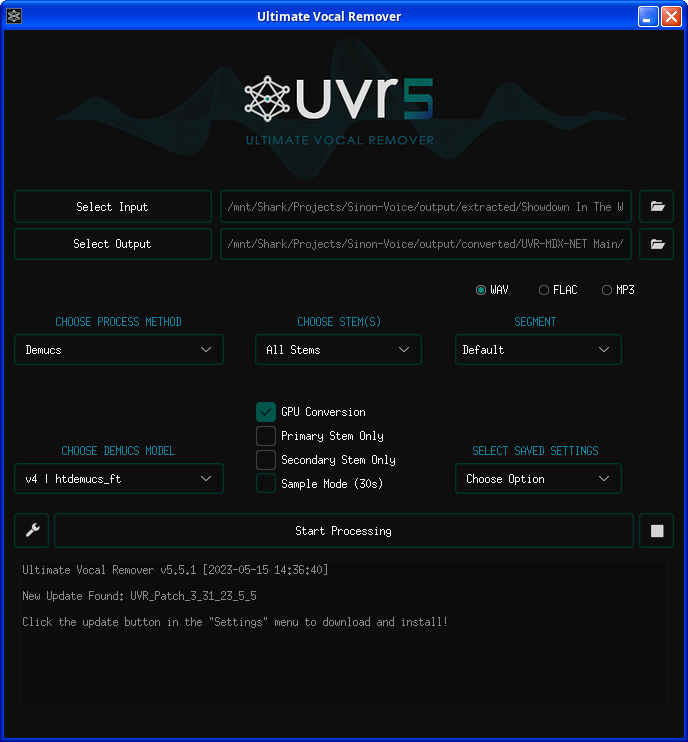
- Click on the wrench icon next to the Start Processing button.
- At the top of the new window that opens, click on the tab called Download Center
- Select the radio button called Demucs
- Select Demucs v4: htdemucs_ft
- Click the download button underneath this combobox
Now that the model is downloaded we are going to remove the background noise from our voice sample. To do this do the following:
- At the top, click the Select Input button
- Select your voice sample
- Now click on the Select Output button
- IMPORTANT! Your output should be like this: dataset_raw/{speaker_id}/**/{wav_file}.{any_format}, example: dataset_raw/sinon/wav/sample1.wav. This folder can be anywhere on your system
- Select a directory where you want the processed file to appear
- Now under the text CHOOSE PROCESS METHOD select Demucs
- Make sure the model is selected under the text CHOOSE DEMUCS MODEL
- Click on GPU Conversion to speed up the process
- Now click on Start Processing and wait until it is done
- After it’s done, navigate to the folder you set as output and listen to it. Does it sound ok? if it does, you are now done, if it doesn’t, don’t use this file in your dataset
Training the model
Here is a quick explanation on how I trained this model.
Software used:
- so-vits-svc-fork (The software to morph your voice)
- qpwgraph (this is used to reroute the output to another process like Discord or Telegram)
Step 1
git clone https://github.com/voicepaw/so-vits-svc-fork
cd so-vits-svc-fork
conda create -n so-vits-svc-fork python=3.10
conda activate so-vits-svc-fork

python -m pip install -U pip setuptools wheel
pip install -U torch torchaudio --index-url https://download.pytorch.org/whl/cu118
pip install -U so-vits-svc-fork
Step 2
Navigate to the directory where you dataset is at, for example, if your dataset is at /mnt/Shark/Projects/Sinon-Voice/training/dataset_raw/sinon/wav/ navigate to /mnt/Shark/Projects/Sinon-Voice/training run the following commands:
svc pre-resample
svc pre-config
svc pre-hubert
svc train
Using the model
Step 1
Run the voice morpher:
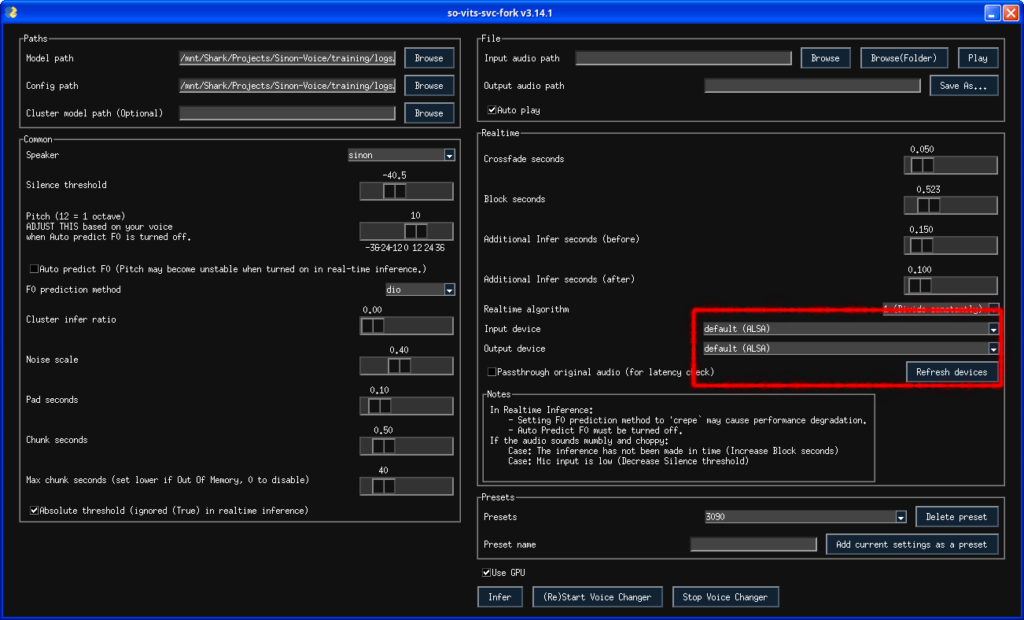
svcgOn the right side in the application that just opened, make sure to set the input device to default (ALSA) and the output also to default (ALSA). Example:
Step 2
At the top, select your model and config files. These are located in your training folder at: logs/44k/
Step 3
You can now tweak some settings, for example the pitch (I recommend a value of 12 to begin with)
Turn off Auto predict
Step 4
After tweaking the settings to your liking, press the button called Infer at the very bottom to start the voice morph